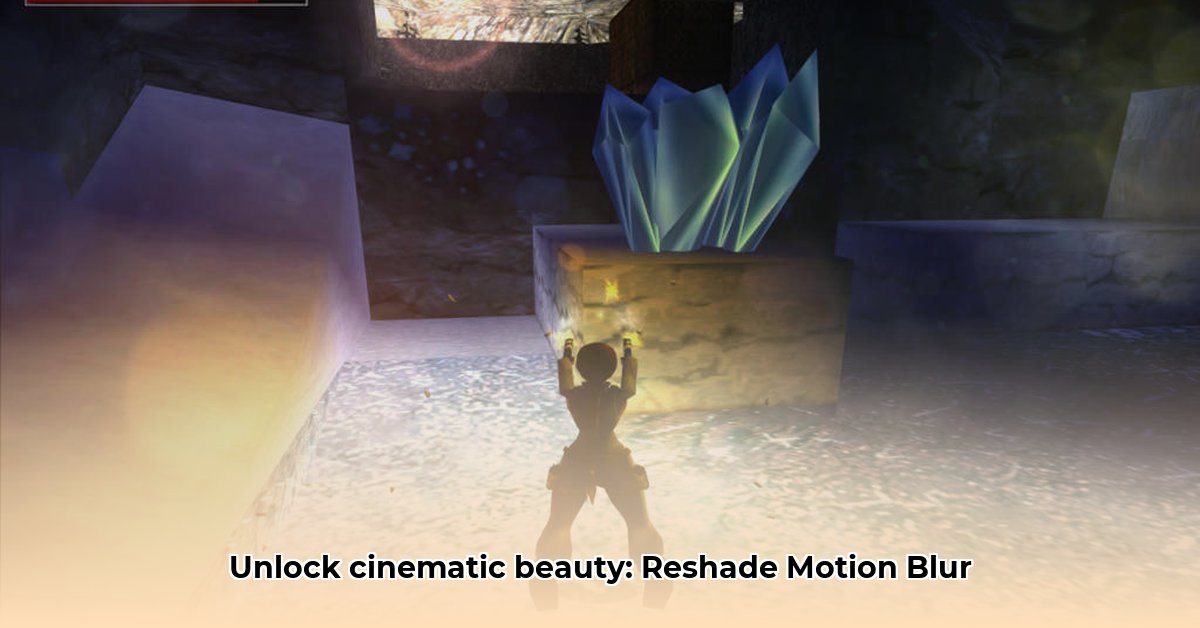
Want smoother, more cinematic gameplay? Reshade motion blur shaders can significantly enhance your gaming experience. This guide compares two popular options—Jakob Wapenhensch's LinearMotionBlur.fx and aestheticses' MotionBlur.fx—to help you choose the perfect shader for your system and preferences. We'll cover installation, performance, visual quality, and licensing, ultimately guiding you to the best choice for your needs.
Understanding Reshade Motion Blur Shaders
Reshade is a post-processing injector (a tool that adds effects to your game's visuals). Motion blur shaders specifically add a blurring effect to moving objects, creating a more fluid and immersive experience. Both shaders discussed here require a separate motion estimation shader (the underlying engine that makes motion blur work). You'll need to download this separately and include it in your Reshade setup.
Feature Comparison: Jakob Wapenhensch vs. Aestheticses
Both shaders achieve motion blur, but their capabilities and complexity differ significantly.
| Feature | Jakob Wapenhensch's LinearMotionBlur.fx | aestheticses' MotionBlur.fx |
|---|---|---|
| Licensing | Creative Commons NonCommercial-NoDerivatives | Creative Commons BY-NC-ND |
| Complexity | Simple; easy to use | Advanced; highly customizable |
| User Interface | Minimal settings | Extensive, graphical interface |
| Performance | Generally low impact on frame rate | Potentially higher impact |
| Features | Basic motion blur | Wide range of adjustable parameters |
Jakob's shader is straightforward, ideal for users wanting a quick and easy way to add motion blur. Aestheticses' shader, however, offers extensive customization options, requiring more technical knowledge. Isn't it interesting how such different approaches can achieve the same goal?
Performance: Smooth Gameplay or Stunning Visuals?
Which shader performs better? It depends on your hardware. Jakob's shader likely results in less impact on your frame rate, especially on less powerful hardware. Aestheticses' shader, with its numerous adjustable parameters, may put more strain on your system, potentially leading to lower frame rates. The difference also varies depending on the game. Experimentation is key—download both and see how they perform in your favorite games.
Ease of Use: Installation and Configuration
Installing either shader is generally straightforward if you've already set up Reshade. Download the shader files, place them in your Reshade's shaders folder, and enable them in Reshade's in-game interface. However, Jakob's is far more user-friendly; Aestheticses' offers many customization options requiring time to navigate and understand its settings. Which will you choose?
Visual Quality: A Subjective Comparison
This is entirely subjective. Jakob's shader provides a clean, simple motion blur effect. Aestheticses' shader offers more detailed and potentially richer results but requires significant adjustments to its multiple settings. The "better" looking blur is ultimately a matter of personal preference. Try both and decide which visual aesthetic you prefer.
The Verdict: Choosing Your Best Reshade Motion Blur Shader
There's no single "best" shader.
Jakob Wapenhensch's LinearMotionBlur.fx: Ideal for users prioritizing simplicity and performance, particularly those with moderate gaming PCs. It's a great starting point.
aestheticses' MotionBlur.fx: Best suited for users comfortable with more technical setups and willing to spend time customizing for highly detailed results, and who possess powerful hardware.
The best approach is to try both. Download them, test them in your games, and choose the one that best suits your needs and hardware capabilities.
How to Choose the Best ReShade Motion Blur Shader for Low-End PCs
For low-end PCs, prioritizing performance is crucial. Shaders using pre-existing motion estimation (like Jakob Wapenhensch's) generally offer better performance than those relying on frame blending. Frame blending, while producing superior visuals, demands significantly more processing power.
Choosing the Right Shader for Your Low-End System
For low-end systems, a motion estimation-based shader is recommended. Jakob Wapenhensch's shader is a strong choice given its balance of performance and visual quality. Avoid frame blending shaders unless you have a powerful system.
Installation and Configuration (Simplified Steps)
- Download ReShade and your chosen motion blur shader.
- Install ReShade following the on-screen instructions.
- Place the shader files in the correct ReShade directory.
- Configure the shader's settings within Reshade's in-game interface.
Remember to back up your game files before installing any modifications.
⭐⭐⭐⭐☆ (4.8)
Download via Link 1
Download via Link 2
Last updated: Tuesday, April 29, 2025